


FDMecha Accessory - Modular Area Marker
Mark off areas of dangerous terrain and lingering battlefield effects with this set of modular area terrain markers, designed to work with the FDMecha Hex Terrain system. Areas can be any arbitrary shape, and can be configured either to sit fully inside the hexes marked (so they can butt up against adjacent raised terrain) or just outside the marked hexes (so they can go around raised terrain contained within), and can be split into parts that more-or-less hold their shape to mark areas that cross multiple heights. Insert parts can be inserted to indicate what the indicators are indicating; tall inserts also act as grab handles and as a place to hang condition rings or other additional indicators.
EDIT 11 Nov 2026: Added an "outer corner" piece that provides a little more grip and rigidity for the expanded corners on larger markers (or for folks printing at reduced scale)
Parts have been tested in Basic PLA, Matte PLA and PETG; Matte PLA isn't recommended for the corner clips (it proved a little too flexible in testing), but all above filaments should otherwise work for all pieces.
Instructions:
- Print an equal number of "bar" and "corner" pieces, plus optional inserts (up to 1 per bar). For some common Lancer RPG sizes:
- S1 (1 space): 6
- S2 (3 spaces): 12
- S3 (and/or Blast 1 and/or Cone 3): 18
- The same number will make either type of cone shape (edge-facing or corner-facing), but you may want 1 of each as reassembling one into the other is a bit fiddly to do on the fly.
- S4 (and/or Burst 1 around a S2 character and/or Cone 4): 24
- Line [length]: [length]x4, plus 4 for the ends.
- Corners and bars should print in their default orientation; inserts and tall inserts should be auto-orientated to lay flat. No support should be necessary in either case.
- Inserts should snap into the top slot on bars with a little pressure. For tall inserts, use the shoulders at the base to press the insert in.
- Corners should clip onto bars in 3 tactile clicks, allowing them to be assembled in two different ways:
- For a marker that sits inside the marked hexes: click convex/outer corners all the way in, and concave/inner corners out by 1 click.
- For a marker that sits outside the marked hexes: click convex/outer corners 1 click out, and concave/inner corners all the way in.
FDMecha Accessory - Modular Area Marker

Modular Markers Organizer - Customizable 3D-Printed Pen Holder and Desk Organizer
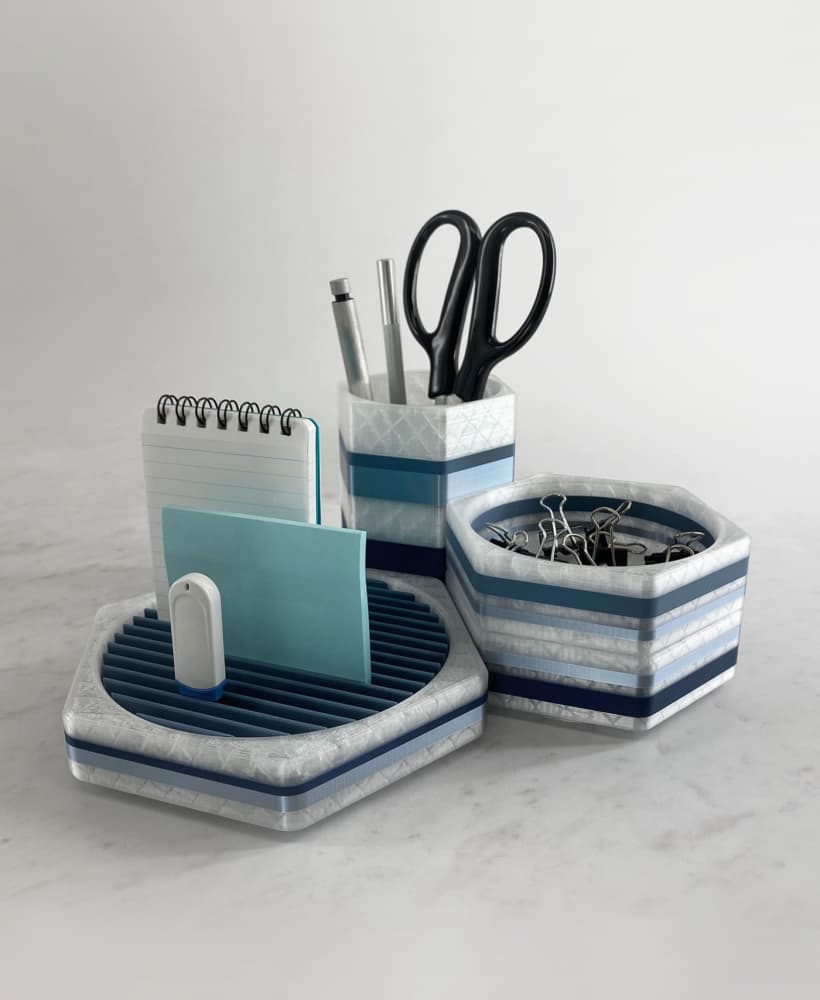
Desk Accessories Modular Stacking Desk Organizer Set with Pencil Cup
Dyson Modular Accessory Rack
UV-5R Radio Holder for Modular Accessory Mount (MAM)

Lil' Lupo Rotary Tool Drill Press w Modular Accessories

Modular Bathroom Accessories With Tray Soapdish Toothbrush Holder

MAIL STAND / POSTCARD STAND (MODULAR) / DESK ACCESSORIE / HOMEDECOR / OFFICE ORGANIZER

Minimal Modular Pen and Marker Holder

Marker & Pen Organizer - Stackable Modular Storage

Phone Lanyard – Modular 3D-Printed Accessory

Modular Binder - 3" and 1.5" Accessories

CornuCupia - The Thanksgiving Drink Markers - Fall Themed Food Cup Markers

PAWZONE: MODULAR WALL ORGANIZER

Turbomac Gaming Organizer V1 – fifteen52 Inspired Modular Desk Dock

Modular Niche

Whiteboard marker holder

Mountain Milestone Markers + Holder
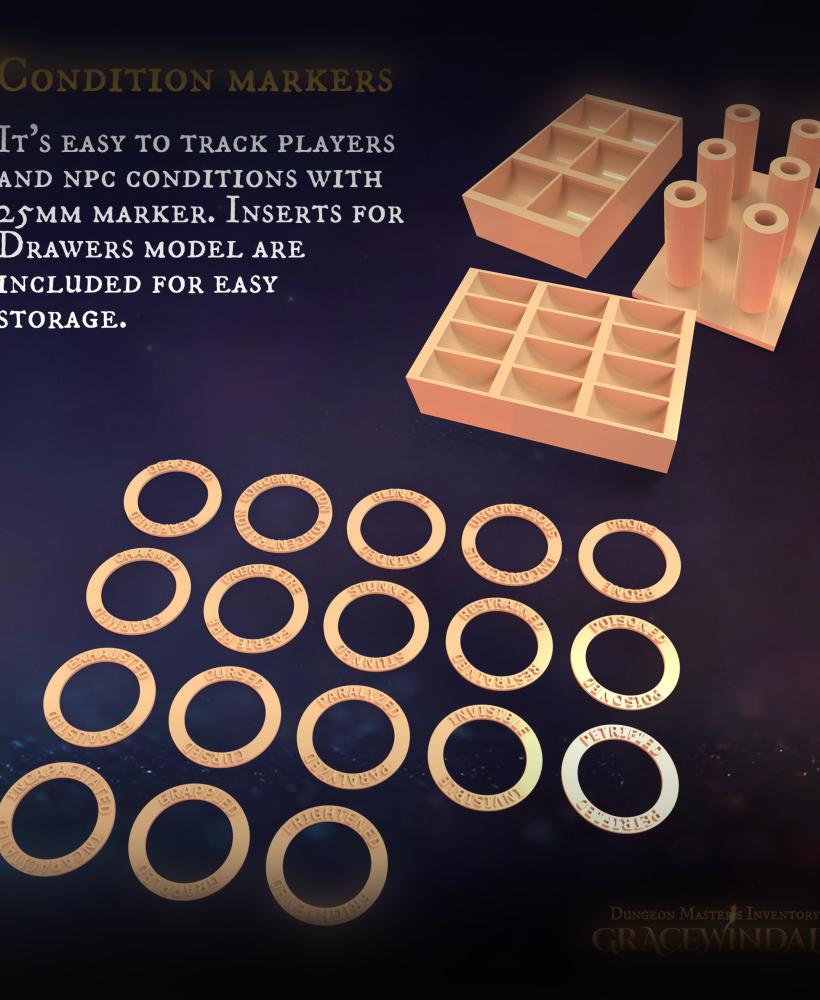
Condition Markers
Modular Mushrooms
